
A complete command-line interface for xyOps, the workflow automation and server monitoring platform. Launch jobs, investigate failures, explore server health, manage your automation, and keep definitions in Git, all from your terminal.
xyCLI combines colorful tables, monitoring charts, syntax-highlighted code, and readable job reports with commands you can use in everyday scripts. Run xy for a dashboard, follow a job as it runs, or drill into an entire server group's metrics without opening a browser.
- Run your automation: Create Events, schedule scripts, launch workflows, pass input files, and follow live job output.
- See what is happening: Browse active Alerts, queued work, upcoming jobs, server metrics, processes, and network connections.
- Investigate what happened: Search completed jobs, explore historical monitoring charts, inspect snapshots, and read system logs.
- Build and organize: Manage Categories, Tags, Plugins, notification Channels, Web Hooks, Buckets, Secret Vaults, and Tickets.
- Work with local files: Export reusable definitions, preview imports, and sync existing definitions with a directory you can version in Git.
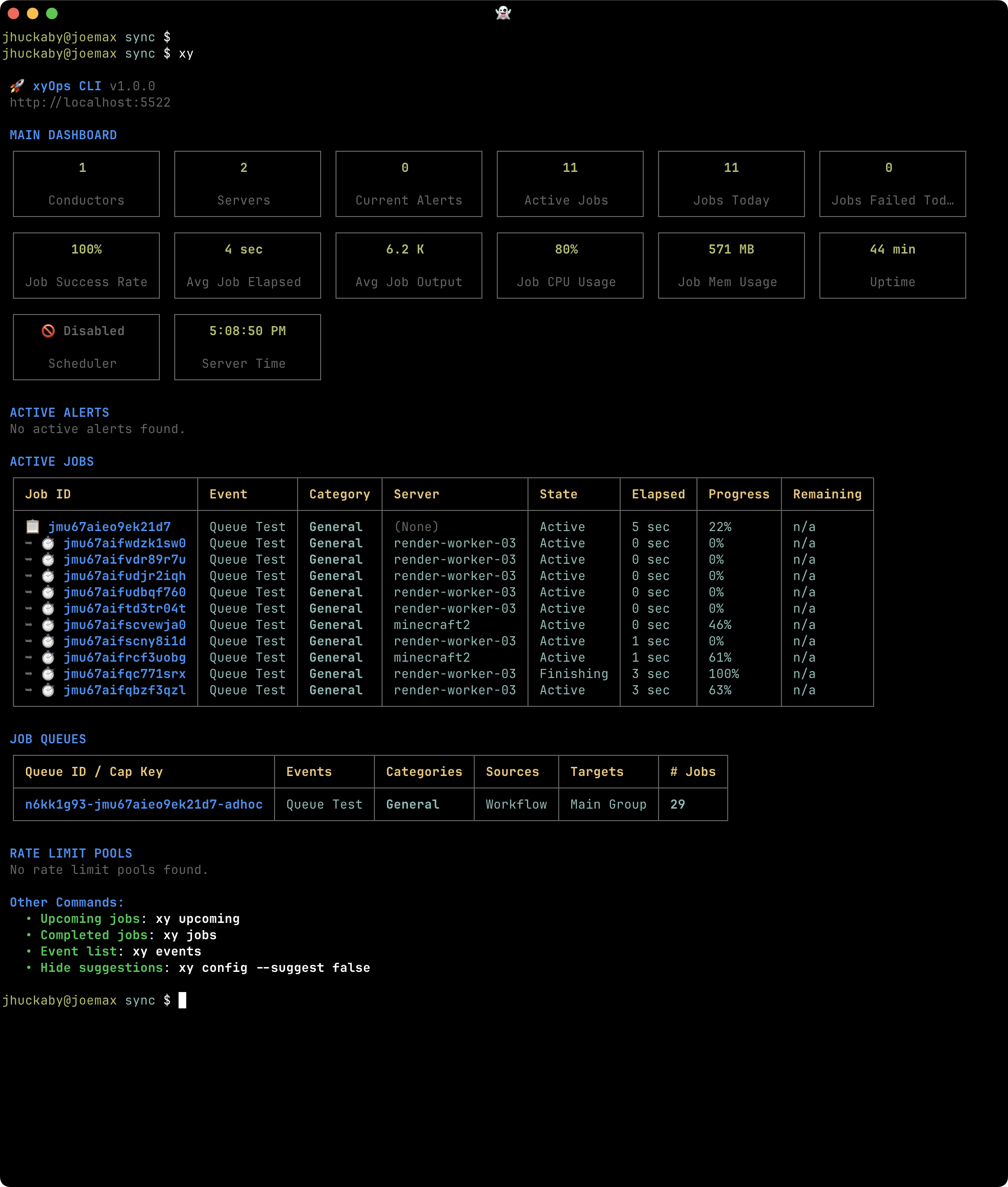
The dashboard brings server health, active Alerts and jobs, queues, and rate limits into one terminal view.
Browse the screenshot gallery for more views, or jump to the command reference.
- Getting started
- Configuration
- Global CLI switches
- Tutorial: your first Event, job, and Web Hook
- Tutorial: two-way sync with Git
- Explore and manage xyOps
- Transfer data between systems
- Sync your automation with local files
- System operations and logs
- Documentation and API access
You will need Node.js 20.19.0 or later, npm, and a running xyOps 1.0.96 or later instance. Install xyCLI on your workstation or another machine that can reach xyOps; it talks to the REST API, so it does not need to run on a conductor or worker.
npm install -g @pixlcore/xycliThis installs the xy command. In the xyOps web interface, open API Keys and create a key for the CLI. Choose privileges and resource access appropriate for the work you want to do. The tutorial needs access to view Events and servers, create and edit Events, run jobs, and create and test Web Hooks. System administration commands require a full administrator key.
Save your xyOps URL and API Key:
xy config --base_url https://xyops.example.com --api_key YOUR_API_KEYUse the base URL of your xyOps instance, without the /api endpoint suffix. The command creates ~/.config/xyops/cli.json and saves the settings there.
Now check your connection:
xyYou should see the dashboard. If you need to set up xyOps itself, start with its Getting Started guide. See API Keys for authentication details and Privileges for permissions.
xyCLI loads optional JSON configuration files on every invocation, then applies environment variables. Settings are merged in this order:
| Order | Source | Purpose |
|---|---|---|
| 1 | /etc/xyops/cli.json |
Shared settings for the machine. |
| 2 | ~/.config/xyops/cli.json |
Settings for your user account, overriding matching system settings. |
| 3 | XYOPS_ environment variables |
Overrides for the current shell or command. |
Neither file is required if you supply your connection settings through the environment. Missing files are skipped; files you create must contain valid JSON. Matching top-level properties are replaced by later sources, so a user-level object such as sync replaces the system-level object of the same name.
A simple user configuration looks like this:
{
	"base_url": "https://xyops.example.com",
	"api_key": "YOUR_API_KEY",
	"items_per_page": 25,
	"suggest": true,
	"color": true
}
View the effective settings, or change a preference:
xy config
xy config --items_per_page 25
xy config --suggest false
xy config --color false
xy config masks your API Key when displaying it. Updates load the user configuration file separately, apply only the settings specified on the command line, and save it with owner-only read/write permissions. Other user settings are preserved; settings inherited from the system file or environment are not copied into the user file. If the user file does not exist, it is created with only the settings you supply. Environment overrides still take precedence on the next invocation.
Every XYOPS_ variable maps to a lowercase configuration key. For example, XYOPS_BASE_URL sets base_url and XYOPS_ITEMS_PER_PAGE sets items_per_page. Literal true and false become booleans, and numeric strings become numbers.
Use environment variables for a temporary connection or a shell script:
export XYOPS_BASE_URL="https://xyops.example.com"
export XYOPS_API_KEY="YOUR_API_KEY"
xy
Or override a display setting for one command:
XYOPS_COLOR=false xy eventsOther settings include temp_dir for local temporary files and caches, cache_ttl for cached API responses, and new_event_template for your preferred defaults when creating Events. See the configuration command reference.
These switches control output or execution across many commands. Add them to the command you are running; the available details and output formats depend on that command.
| Switch | Short form | What it does |
|---|---|---|
--verbose |
-v |
Show extra detail. Resource views may expand scripts, parameters, or monitoring sections; many mutation commands also display API requests and responses. |
--quiet |
-q |
Suppress ordinary terminal output and progress displays. JSON data still prints, and fatal error messages remain visible on stderr. |
--dry |
Preview a supported operation without applying it. Resource mutations, imports, exports, sync, and API calls use this to show planned changes or requests. It does not prevent connection checks or reads, and does not apply to local xy config updates. |
|
--format json |
-f json |
Display supported results as indented JSON instead of the usual report or table. |
--format jsonc |
-f jsonc |
Display supported results as compact JSON on one line. Here, jsonc means compact JSON. |
--raw |
-r |
Show resource IDs instead of friendly names in supported human-readable views. This changes labels, rather than selecting JSON output or raw job logs. |
--help |
-h |
Show command help when added to a command, such as xy event create --help. You can also use xy help event create. |
For example, inspect expanded Plugin details, preview an Event update, or use IDs in job listings:
xy plugin PLUGIN_ID --verbose
xy event update EVENT_ID --enabled false --dry
xy jobs --raw
xy event create --help
For JSON output without banners and progress displays, combine --format with --quiet. Disable color as well when you want plain, indented JSON in a file:
XYOPS_COLOR=false xy events --format json --quiet > ./events.json
xy categories -f jsonc -q > ./categories.json
Fatal errors print to stderr and exit with a nonzero status even in quiet mode, so redirecting JSON output to a file leaves those errors visible in your terminal. Quiet mode can still suppress command-specific warnings and failure reports, such as sync messages or import results. Sync warnings and errors still produce a nonzero exit status. Check exit status and any structured results when scripting; omit --quiet when you need those detailed diagnostics.
JSON output varies by command: some local collection views return all matches even when their table view is paginated, while database searches may return only the selected page. Some commands print multiple JSON values, such as the request and response from xy api. Check the command reference when using the output in a script.
These options also appear across commands, but are handled by the individual commands rather than globally:
| Option | Where it applies |
|---|---|
--limit N |
Set the number of rows in supported paginated views. In Event or Category mutations, --limit can instead append a resource-limit object. |
--page N |
Select a page in supported paginated views, starting with page 1. |
--offset N |
Skip a number of rows in supported paginated views. If --page is also supplied, it determines the offset using the selected limit. |
--confirm |
Apply operations that require explicit confirmation, such as imports and many deletes. It also overrides the update warning for definitions managed by up-only sync. It does not replace --dry, and sync applies changes without this option. |
--json @FILE |
Load a JSON object into the command's request options. Use --json @- to read it from standard input. This is useful for resource creation, updates, and API calls. |
--export FILE |
Export a supported resource definition from its detail command to an XYPDF file. |
xy servers --limit 10 --page 2
xy plugin create --json @./plugin.json --dry
xy event EVENT_ID --export ./event.json
Many value options also accept @FILE or @-, such as --params.script @./hello.sh. Dotted names set nested request properties, as in --params.duration 30.
- Command reference: Export, Import, and API requests, plus the individual command sections for supported pagination and detail options.
Follow the xyCLI Tutorial to explore the dashboard, create a shell Event, and watch its job run. Then create a custom Web Hook and attach a success action so each successful run sends a notification to your endpoint. The tutorial also shows how to update your script and export the Event with its Hook.
Plural commands such as events, servers, and tickets browse collections. Singular commands such as event, server, and ticket open an item or perform an operation. Many views accept a fuzzy title or name for convenient exploration; use the exact IDs shown in the output when scripting or changing saved resources.
Events describe what to run, which Plugin and parameters to use, where to run it, and which triggers, actions, and limits apply. Workflows are Events that orchestrate multiple steps, so you can browse, inspect, run, and export them through the same commands.
Find your backup automation, see what is scheduled next, or send a file to a workflow and follow the result:
xy events backup
xy events --category Production
xy event EVENT_ID --upcoming
xy run WORKFLOW_ID --file ./input.csv --follow
For a recurring script, xy event create provides shortcuts such as --cron "30 4 * * *" and --interval "5 minutes". Run-time parameter overrides let you reuse a saved Event for different inputs without changing its definition.
- Command reference: Events, Event operations, and Run.
- Learn more about xyOps: xyOps Events, xyOps Workflows, and xyOps Triggers.
A job is one execution of an Event or workflow. Use job searches to find failures, compare runs, and locate output. Opening an active job follows its live stream; opening a completed job displays its report.
xy jobs --error --date today
xy jobs --event "Nightly Backup" --date yesterday
xy job JOB_ID
xy job log JOB_ID --download ./job-output.log
You can also rerun a previous job with xy job run JOB_ID --follow, or resume a workflow job where supported. Job reports bring together results, performance, output, files, and workflow details.
- Command reference: Job searches and Job operations.
- Learn more about xyOps: xyOps Events and job execution and xyOps Job data.
Categories organize Events and workflows into areas such as Production, Backups, or Development. Each Event belongs to one Category. Category actions and limits apply to contained jobs, making them useful for shared failure notifications, runtime limits, and other defaults. Disabling a Category blocks its Events from launching.
xy categories
xy category "Production"
xy category create --title "Backups" --color blue- Command reference: Categories and Category operations.
- Learn more about xyOps: xyOps Categories.
Servers are workers running xySat. Explore their live or last-known health, see which jobs they are running, and inspect CPU, memory, filesystems, containers, processes, and network connections. Historical views help answer questions such as what changed during a busy hour.
xy servers --os linux
xy server SERVER_ID --monitors
xy server SERVER_ID --processes --connections
xy server history SERVER_ID 2026/09/17/14
History dates select an hour, day, month, or year depending on how many components you provide. Replace the example date with the period you want to investigate. To add a worker, xy server add --platform linux generates an installation command you can run on the new machine.
- Command reference: Server browsing, Server details, and Server history.
- Learn more about xyOps: xyOps Servers.
Groups turn a collection of workers into a job target and a shared monitoring view. Servers can join through hostname patterns or explicit assignment, and each server can belong to multiple Groups. View aggregated metrics, choose average or total values, and explore the jobs and Alerts across the Group.
xy groups
xy group "Production" --monitors --merge total
xy group GROUP_ID --upcoming
xy group history GROUP_ID 2026/09/17
Groups also provide default Alert actions and per-server job limits. They are a useful way to direct automation at a pool of workers while keeping a combined view of its health.
- Command reference: Groups, Group details, and Group history.
- Learn more about xyOps: xyOps Server Groups.
Monitors turn server data into numeric metrics using xyOps expressions. They power charts and provide values for Alerts. Define custom metrics, scope them to Groups, and test an expression against a worker before relying on it.
xy monitors
xy monitor MONITOR_ID
xy monitor test MONITOR_ID --server SERVER_ID
xy monitor create --title "CPU Usage" --source cpu.currentLoad --suffix %
Use server or Group views to chart the collected values. Monitor settings also support byte counts, durations, and deltas such as network bytes per second.
- Command reference: Monitors and Monitor operations.
- Learn more about xyOps: xyOps Monitors and xyOps Expressions.
Alert definitions describe conditions to detect on your servers, such as high CPU or low free space, and the actions to take when they trigger or clear. Alert invocations are the actual occurrences, with their server, timing, evaluated message, and related jobs, Tickets, or snapshots.
xy alerts
xy alert "High CPU"
xy alert test DEFINITION_ID --server SERVER_ID
xy alerts search --active
xy alerts search --group Production --date today
Use xy alerts to manage definitions and xy alerts search to investigate occurrences. Testing evaluates a definition against current server data without updating its saved settings.
- Command reference: Alert definitions, Alert searches, and Alert operations.
- Learn more about xyOps: xyOps Alerts.
Snapshots preserve a point-in-time view of a server or Group for later investigation. Capture a server before maintenance, browse snapshots created by jobs or Alerts, and revisit recorded processes, connections, and monitoring context.
xy server SERVER_ID --snapshot
xy snapshots --server SERVER_ID
xy snapshot SNAPSHOT_ID --monitors --processes --connections
For watching an ongoing issue, xy server SERVER_ID --watch 300 asks xyOps to capture one snapshot per minute for five minutes. The snapshot list also accepts Group and source filters.
- Command reference: Snapshot browsing, Snapshot details, and Server snapshot/watch commands.
- Learn more about xyOps: xyOps Snapshots.
Plugins are the executable building blocks of xyOps. Event Plugins run jobs, Monitor Plugins collect metrics, Action Plugins react to conditions, and Scheduler Plugins make custom scheduling decisions. Inspect their settings and parameters, or upload source code directly from a local file.
xy plugins --type event
xy plugin PLUGIN_ID --verbose
xy plugin update PLUGIN_ID --script @./plugin.js
The verbose view displays the complete embedded script with syntax highlighting. This makes it easy to review what is installed and iterate on code from your editor.
- Command reference: Plugins and Plugin operations.
- Learn more about xyOps: xyOps Plugins.
Channels bundle notification recipients and follow-up actions into reusable presets. An Event, Category, or Alert action can reference a Channel to send email, in-app notifications, a Web Hook, or a follow-up Event using shared settings.
xy channels
xy channel "Operations"
xy channel create --title "Operations" --users admin
Creating a Channel saves its configuration; it runs when an action references it. Use Channels to maintain an operations contact list in one place.
- Command reference: Channels and Channel operations.
- Learn more about xyOps: xyOps Channels.
Web Hooks send outbound HTTP requests to other services from jobs and Alerts. Their URLs, headers, and bodies can use templates, making them useful for chat notifications, service integrations, and custom automation endpoints.
xy hooks
xy hooks --method POST
xy hook HOOK_ID
You can create and update definitions from the CLI, including loading request bodies from local files. The command reference also explains how to test a Hook by making a real request.
- Command reference: Web Hooks and Hook operations.
- Learn more about xyOps: xyOps Web Hooks.
Buckets hold durable JSON data and files that jobs and workflows can share. Use them for a last-success marker, a reusable input dataset, or generated reports and artifacts. The CLI separates Bucket metadata, JSON contents, and file operations so you can work with each directly.
xy buckets
xy bucket BUCKET_ID
xy bucket write BUCKET_ID --data @./state.json
xy bucket upload BUCKET_ID --file ./report.csv
xy bucket file download BUCKET_ID report.csv- Command reference: Buckets and Bucket operations.
- Learn more about xyOps: xyOps Buckets.
Secret Vaults store encrypted variables and deliver them to assigned Events, Categories, Plugins, or Web Hooks at runtime. Browse variable names and assignments without exposing their values, and update a Vault from a local JSON file when credentials change.
xy secrets --name API_TOKEN
xy secret VAULT_ID
xy secret update VAULT_ID --fields @./secrets.json
Normal list and detail views show safe metadata. The --fields file must contain the complete replacement array of variables. Creating, updating, explicitly decrypting, or deleting a Vault requires an administrator API Key.
- Command reference: Secret Vaults and Vault operations.
- Learn more about xyOps: xyOps Secrets.
API Keys provide access for the CLI, scripts, and integrations. Manage their privileges, Roles, resource restrictions, expiration, and status, or find which keys grant a particular privilege. List and detail commands show safe metadata rather than the authentication secret.
xy keys
xy keys --privilege run_jobs
xy key KEY_ID
xy key update KEY_ID --active false
Use the internal Key ID shown in the list for updates. Newly created key secrets are displayed once; existing plaintext secrets cannot be retrieved.
- Command reference: API Keys and Key operations.
- Learn more about xyOps: xyOps API Keys and xyOps Privileges.
Roles bundle privileges and resource restrictions that can be assigned to users and API Keys. Reuse a Role when several integrations need the same access, then find the keys that reference it or transfer its definition to another instance.
xy keys --role ROLE_ID
xy role ROLE_ID --export ./role.json
xy import ./role.json
Role definitions support export and import; there is no dedicated Role list or editing command. Manage user accounts and Role assignments in the xyOps web interface.
- Command reference: Key filters, Export, and Import.
- Learn more about xyOps: xyOps Users and Roles.
Tags are reusable labels for Events, jobs, and Tickets. They help you find related work across Categories, mark priority or environment, and drive conditional actions. A job can also add Tags dynamically while it runs.
xy tags
xy tag create --title "Important"
xy jobs --tag Important --date today
xy tickets --tag Important --status open- Command reference: Tags and Tag operations.
- Learn more about xyOps: xyOps Tags.
Tickets connect investigations and runbooks with your automation. Search by status, assignee, Tag, Category, or dates; read Markdown descriptions and comments; and inspect attached Events, jobs, and files from the terminal.
xy tickets --status open --assignee admin
xy ticket 12345
xy ticket 12345 --comment "Investigation started."
xy ticket upload 12345 --file ./diagnostic.txt
Ticket commands accept either the friendly Ticket number or its internal ID. You can create issues, add findings, attach evidence, and close them as part of the same command-line workflow.
- Command reference: Ticket searches and Ticket operations.
- Learn more about xyOps: xyOps Tickets.
Find new capabilities without leaving your terminal. Search the Marketplace, filter by Plugin type or requirements, and read a Plugin's README and available versions before installing it.
xy marketplace search backup
xy marketplace --plugin_type monitor
xy marketplace pixlcore/xyplug-ai
xy marketplace install pixlcore/xyplug-ai
Installation first displays a preview. Add --confirm after reviewing it to install or upgrade the Plugin definition. Installation does not run or test the Plugin.
- Command reference: Marketplace browsing and Installation.
- Learn more about xyOps: xyOps Marketplace.
Export an Event, workflow, Plugin, or other supported definition as an xyOps Portable Data Format (XYPDF) file. These files work with both xyCLI and the xyOps web interface, making them useful for sharing automation, moving definitions between environments, or saving a reusable example.
xy event EVENT_ID --export ./event.json --deps all
xy plugin PLUGIN_ID --export ./plugin.json
xy import ./event.json
Event exports can include selected dependencies, and a .json.gz filename enables compression. Import displays a preview and makes no changes until you add --confirm. Exact matching IDs update existing definitions; other IDs create new objects.
Exports contain definitions rather than job history, Bucket contents, or plaintext API Key secrets. For whole-system backups, use the separate administrator System export commands.
Sync connects existing xyOps definitions with local XYPDF files. Edit scripts and settings in your favorite editor, review changes in Git, and push them to xyOps. Or pull changes made in the web interface back into your local tree.
Start in a fresh directory and export a starter tree:
mkdir xyops-automation
cd xyops-automation
xy sync setup events plugins categories --file_props script,params.script
Setup creates one file per definition and can extract scripts into adjacent source files. Events and workflows are automatically grouped into subfolders named after their Categories. You can reorganize the tree afterward; sync scans subdirectories and matches definitions by resource type and exact ID.
Preview a push or pull, then apply the direction you want:
xy sync ./ --up events,plugins,categories --dry
xy sync ./ --up events,plugins,categories
xy sync ./ --down events,plugins,categories --dry
The push above updates xyOps immediately. Remove --dry from the pull command to write changes to local files. Sync can also run completion commands, such as a Git commit after a pull, and notify you about errors through xyOps.
Sync supports Alerts, API Keys, Categories, Channels, Events and workflows, Groups, Monitors, Plugins, Tags, and Web Hooks. It updates existing objects and files; use creation commands, imports, setup, or exports to introduce new ones. Two-way sync is experimental and uses modification times, so one-way sync is a better fit for a Git-based source of truth.
Delete mode is for up-sync only: it removes eligible xyOps objects missing from your local inventory. Objects with a stock or marketplace property are always protected from deletion and need no local files. Keep a complete inventory of the other objects you intend to retain for each selected type, and review a dry run before applying it. Sync applies changes without a confirmation step unless you use --dry.
Follow the Two-Way Git Sync Tutorial to connect one persistent checkout to a shared repository, commit downloaded changes, discover new Events, and schedule the complete workflow with cron or xySat.
Read the dedicated Sync Guide for setup, file layouts, every option, saved defaults, two-way sync, deletion, notifications, and automation with cron, Git hooks, and GitHub Actions.
- Command reference: Sync commands and Sync setup.
The administrator dashboard shows conductor status, process and database statistics, internal jobs, and connected users. Search system logs to investigate errors without logging into the conductor, or collect a diagnostic report for troubleshooting.
xy system
xy log xyOps --match "error" --rows 100
xy system diagnostic
These commands require a full administrator API Key. Additional System commands cover backups, maintenance, upgrades, and service control; operations such as imports, deletes, restarts, shutdowns, and upgrades require explicit confirmation.
- Command reference: System operations and Log searches.
- Learn more about xyOps: xyOps Logging and xyOps Backup Format.
Read command help or xyOps guides directly in your terminal:
xy help event create
xy help sync
xy doc
xy doc plugins
xy doc plugins/output-data
xy help reads the CLI's command reference. xy doc fetches xyOps documentation from your instance, and accepts a chapter slug when you want just one section.
For requests beyond the dedicated resource commands, xy api calls methods exposed by the xyOps SDK. Dotted options build nested request properties, and @FILE or @- reads values from a local file or standard input:
xy api getEvents
xy api runEvent --id EVENT_ID --params.example VALUE --dry
xy api updateEvent --json @./request.json --dry
The examples with --dry display the request without calling the API. Many resource views also accept --format json to display their data as JSON. See the xyOps API Reference, API command, and documentation command for more.